Prodigy Academy build pack

Engage, Bigin Pipelines & Daily Deal Discipline

A complete build brief for teaching staff how to update customer records, progress deals, write notes, work tasks, store portal files and hand clean work to the next team.

Open the practice deal

Built from the portal’s real controls

The prompt names the shipping routes, labels, data owners and failure boundaries. The practice record is deliberately fictional and cannot contact a customer or change Bigin.

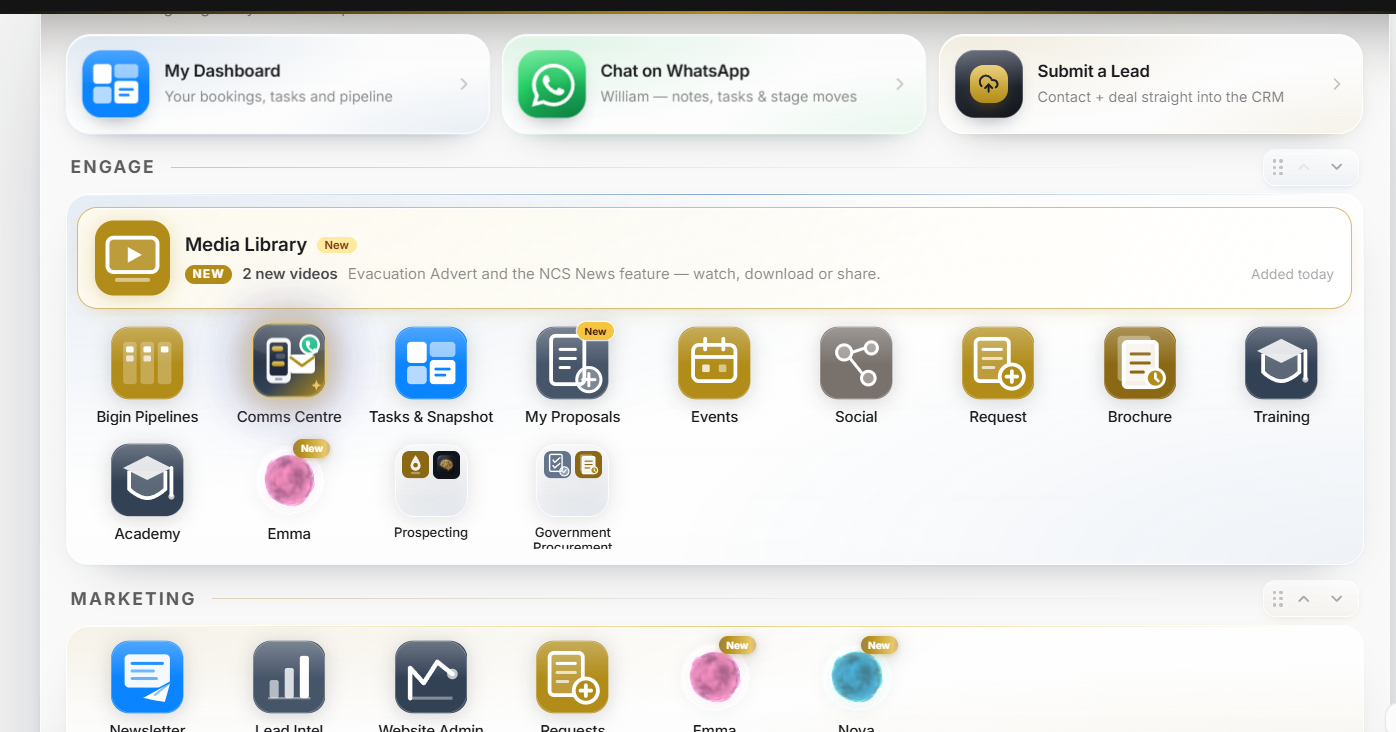
Prodigy portal Engage tile reference

Course build order

7 lessons, one real workflow

1. Read the Engage home screen

Choose the correct tile without creating a second path for the same work.

  • Bigin Pipelines is the starting point for a customer deal.
  • Tasks & Snapshot is the day list; Tasks inside a deal are that customer’s open actions.
  • Comms Centre holds recorded conversations. My Proposals holds quote delivery.
  • Request, Social, Brochure, Emma and Prospecting support the sale but do not own deal stage.

Practice: Open Bigin Pipelines from the simulated Engage row.

2. Understand Bigin pipelines

Read a board stage as operational meaning, not decoration.

  • Read columns left to right and check the count in each heading.
  • Gold attention means explicit interest; returning-customer alerts need prompt follow-up.
  • Open the deal drawer before moving anything. Read the customer, property, owner and last activity.
  • Use Flow or the board move control. The canonical forward path ends at Closed Won.
  • Closed Lost, Closed Revisit and Closed Not a Lead are outcomes, not forward progress.

Practice: Move the synthetic deal from Active discussion to Quote Request only after completing its data checklist.

3. Correct the customer and property

Keep the Contact and Deal records accurate enough for quoting and communication.

  • Customer contact: salutation, first name, last name, role, email, phone, mobile and mailing address.
  • Deal & property: deal name, full site address, amount, closing date, lead source and structured property fields.
  • Use normal capitalisation. Do not put the property address into the customer name.
  • Include street number, street, city, state/province, postal/ZIP and country.
  • Each deal field saves independently; contact edits use Save to Bigin. Read the saved state before leaving.

Practice: Correct “margret whitfeld” and replace the incomplete site address with the supplied full address.

4. Write useful deal notes

Leave a durable, useful account of the customer conversation.

  • Open Write a note…, add a specific title, then record facts, decisions, objections and commitments.
  • Write what the customer said, what you said, and the agreed next step. Avoid “called customer” with no context.
  • Notes save to the Bigin deal, never the contact.
  • Use @mentions only when a named colleague must act. A typed @ is not a substitute for assigning a task.
  • After saving, confirm the note appears newest-first in the conversation.

Practice: Add a “Discovery follow-up” note recording water source, timing and the agreed callback.

5. Create, work and close tasks

Make the next action owned, dated and visible until it is done.

  • Use Schedule to create a task with subject, due date, priority and useful notes.
  • A task is a commitment. Every live deal should have a clear next action.
  • Use Log a touch for a completed call, voicemail or text; use Schedule for future work.
  • Edit or reschedule when the commitment changes. Mark complete only after the action happened.
  • A completed task moves into Past activities. Schedule the next follow-up when one still exists.
  • Delete only duplicates or mistakes; completion is evidence that work occurred.

Practice: Create “Confirm water supply details”, then mark it complete and schedule the next customer callback.

6. Upload files to the portal

Store site evidence where the portal and quote team can use it without bloating Bigin.

  • Choose Property assessment, Photo, Proposal or Other before uploading.
  • Use Upload files. Photos are compressed and iPhone HEIC images are converted to JPEG.
  • Add a plain description so another person knows what the file shows.
  • The Files tab writes portal-only LeadFile records. Nothing from this tab is sent to Bigin.
  • Documents is the working list; Gallery is the visual view of the combined evidence.
  • Deleting here removes the portal file only. Read the confirmation before proceeding.

Practice: Attach a synthetic “north-elevation.jpg”, classify it as Photo and describe what it shows.

7. Finish the deal hand-off cleanly

Leave the next person with a truthful stage, complete context and no hidden work.

  • Review Flow: notes summary first, next action second, open activity third.
  • Review History to confirm stage moves, calls, completed tasks and customer activity.
  • Use Email and Comms Centre for recorded communications, not an untracked personal draft.
  • Use My Proposals when the quote returns. Send the live link by default; the PDF is a snapshot.
  • Accepted means verbal agreement. Contract, signature, deposit and Closed Won remain separate gates.

Practice: Complete the simulator checklist and explain why the deal is ready for Quote Request.

Hands-on lab

Practice on a safe test deal

Local state only. Nothing reads or writes Bigin, portal records, files, email or SMS.

Website · Canada · Training record

margret whitfeld

4820 Alta Vista Rd

Active discussion

Deal flow

Active discussion

A stage is a promise to the next team. Quote Request authorises engineering to begin.

Active discussionQuote Request